Connecting servers
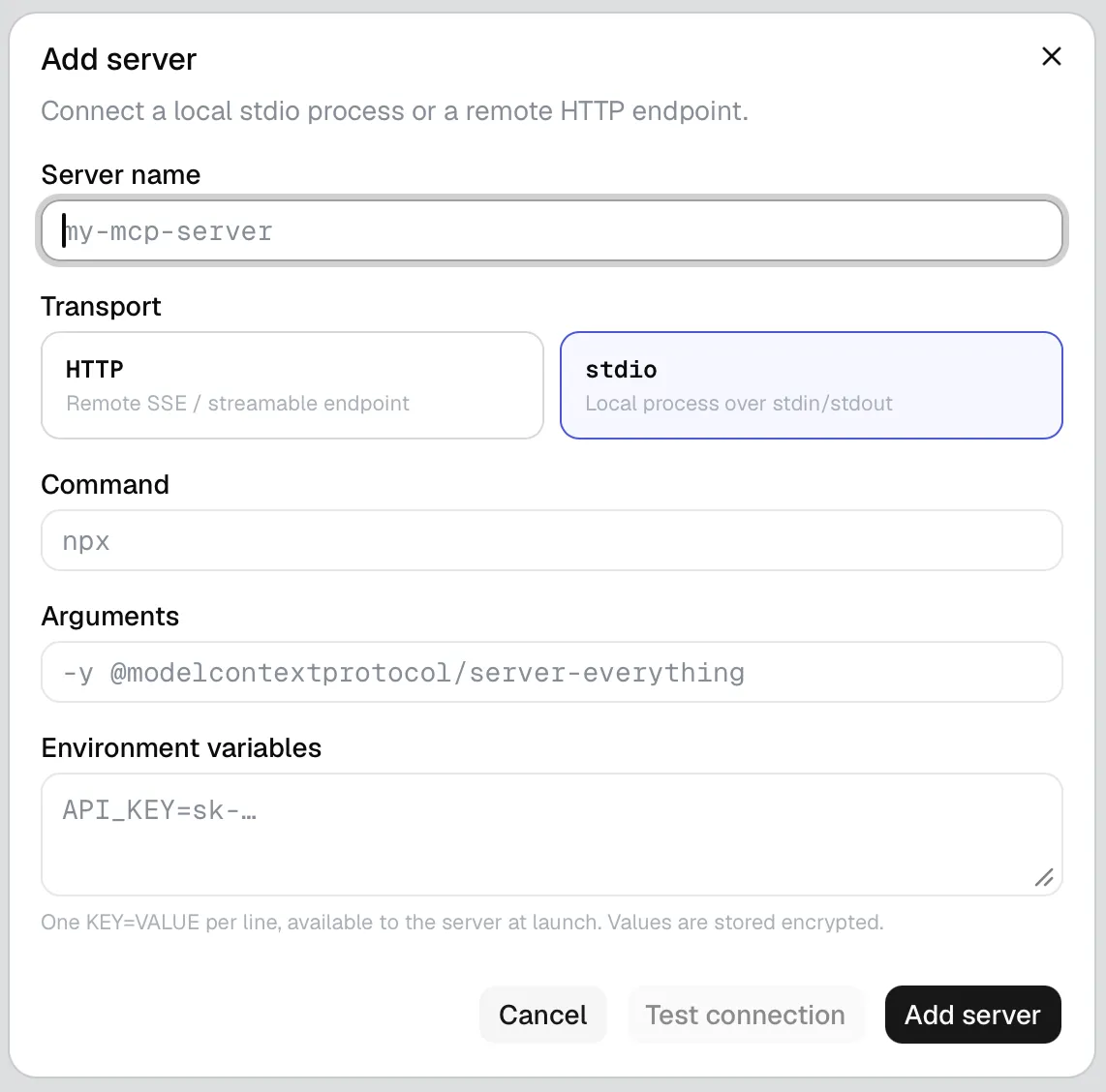
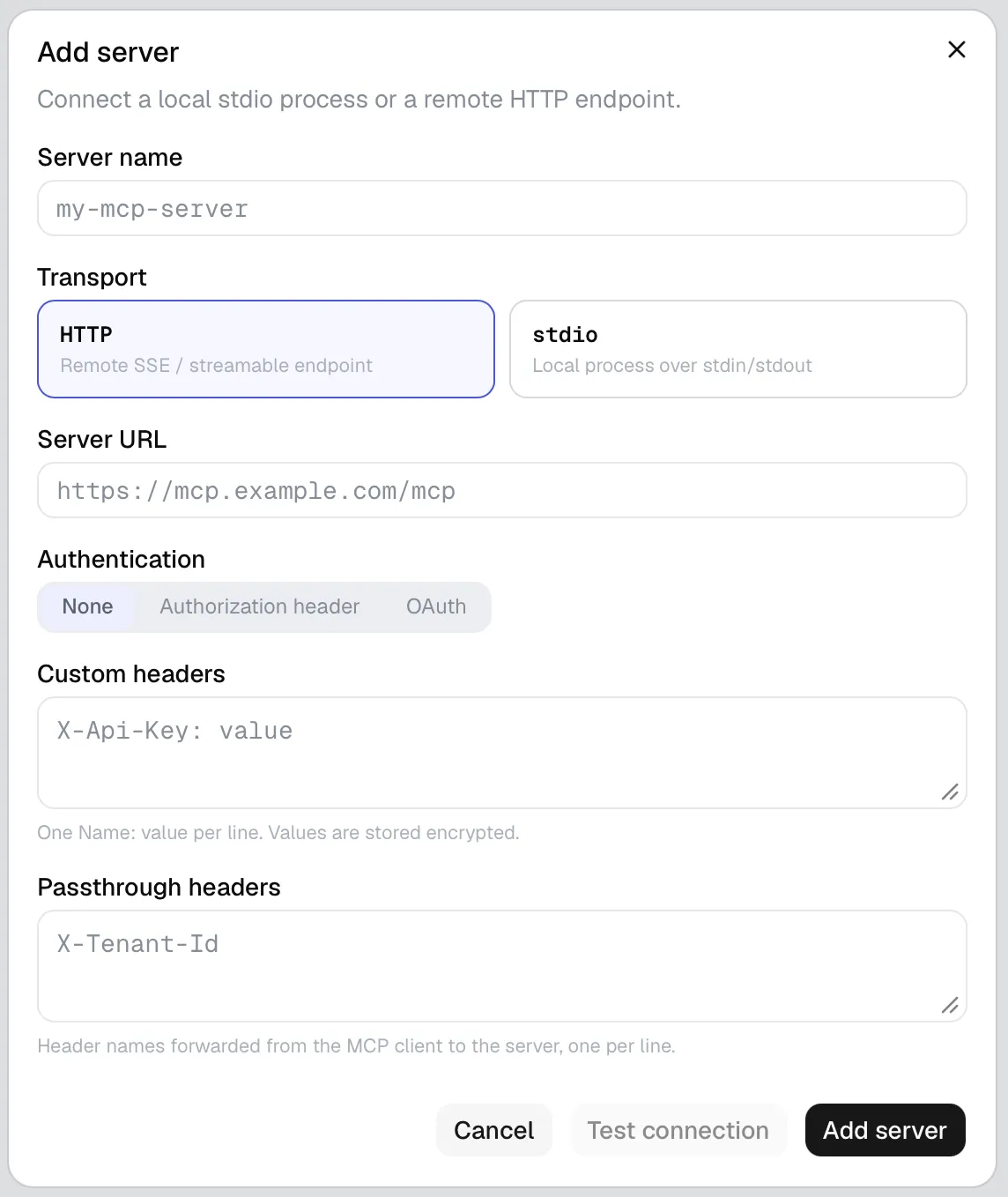
MCP Peek connects to any MCP server: a local stdio process or a remote HTTP / SSE endpoint. Add a server from the + on the server rail (“Connect a new server”); the Add server dialog handles both transports.
Choosing a transport
Section titled “Choosing a transport”| Transport | Use it for | What you provide |
|---|---|---|
| stdio | A local process over stdin/stdout | Command, arguments, environment variables |
| HTTP | A remote SSE / streamable endpoint | Server URL + authentication |
Start by giving the server a Server name (e.g. my-mcp-server) — this is just the display label on the rail.
stdio (local process)
Section titled “stdio (local process)”- Command — the executable to launch, e.g.
npx. - Arguments — e.g.
-y @modelcontextprotocol/server-everything. - Environment variables — one
KEY=VALUEper line. These are stored encrypted (see What we send).
HTTP (remote endpoint)
Section titled “HTTP (remote endpoint)”- Server URL — e.g.
https://mcp.example.com/mcp. - Authentication — None, Authorization header, or OAuth.
- Custom headers — one
Name: valueper line; stored encrypted. - Passthrough headers — header names forwarded from the MCP client to the server, one per line.
Authentication options
Section titled “Authentication options”- None — no credentials.
- Authorization header — a bearer token (placeholder
Bearer sk-…). - OAuth — “Authorizes via your browser — no client setup needed.” Click Connect & authorize; the app shows Waiting for browser…, then ✓ Authorized once you complete the flow.
All credentials — bearer tokens, OAuth tokens, custom header values and stdio environment variables — are encrypted at rest, with the key held in your OS keychain.
Fields at a glance
Section titled “Fields at a glance”| Field | What it does | Required |
|---|---|---|
| Server name | Display name on the rail | Yes |
| Transport | stdio vs HTTP | Yes (default stdio) |
| Command / Arguments / Environment variables | stdio launch | Command required |
| Server URL | HTTP endpoint | Yes (HTTP) |
| Authentication | None / Authorization header / OAuth | Default None |
| Bearer token / Custom headers / Passthrough headers | HTTP auth & headers | No |
Test, save, edit, remove
Section titled “Test, save, edit, remove”- Test connection runs a trial connection (“Testing…”) before you commit.
- Add server (or Save changes when editing) stores it; Cancel discards.
- Delete server removes it and its saved secrets (confirm: “Delete this server and its saved secrets?”).
Connection status & troubleshooting
Section titled “Connection status & troubleshooting”Each rail tile shows a status pill — connected, connecting, degraded, error, or disconnected. On failure, the raw error is shown and the tile tooltip carries the detail. Use Refresh / reconnect (↻) in the explorer header to retry.