Running tools
Open a tool in the Inspector and give it input two ways: a Form generated from the tool’s JSON Schema, or a raw JSON editor with a Skeleton generator. Run it and read the result in whichever view fits.
The Form
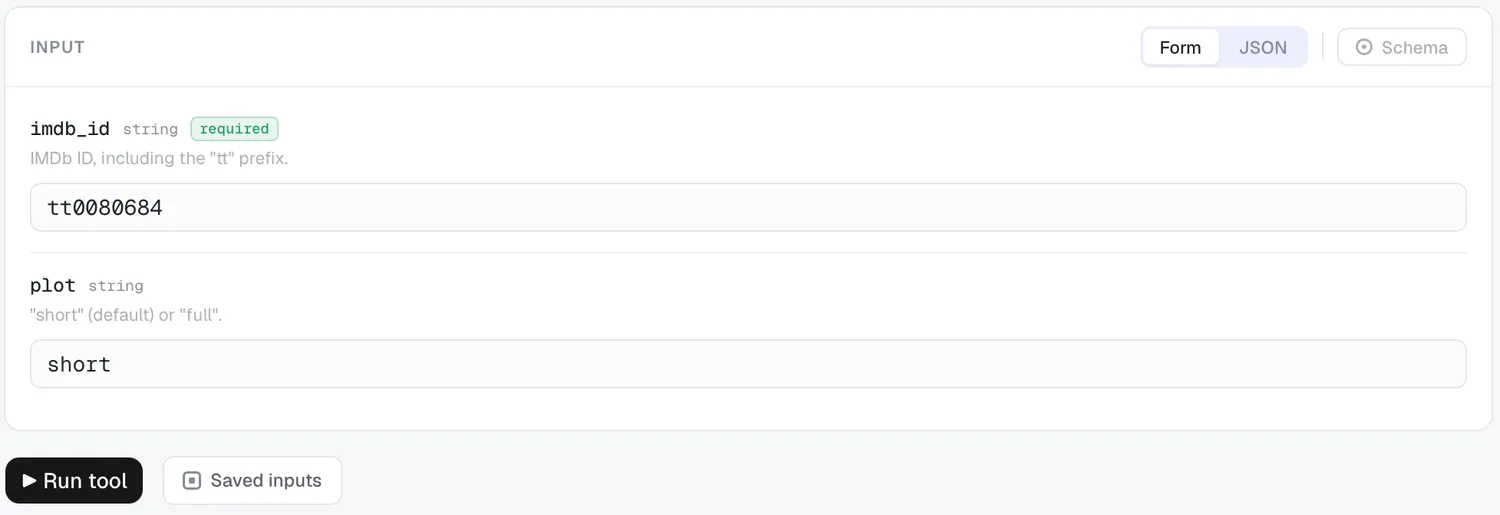
Section titled “The Form”The Form is built automatically from the tool’s schema and handles nested objects, arrays (with Add / ↑↓ reorder / ×), enums (as selects), booleans (as toggles), and read-only const values. Required fields carry a green required badge.
Validation is gentle: a field only turns red after you touch it. Untouched required fields just show the badge, and a dim “Complete required fields” hint sits next to Run while anything’s missing (Run stays disabled until they’re filled).
JSON mode & skeletons
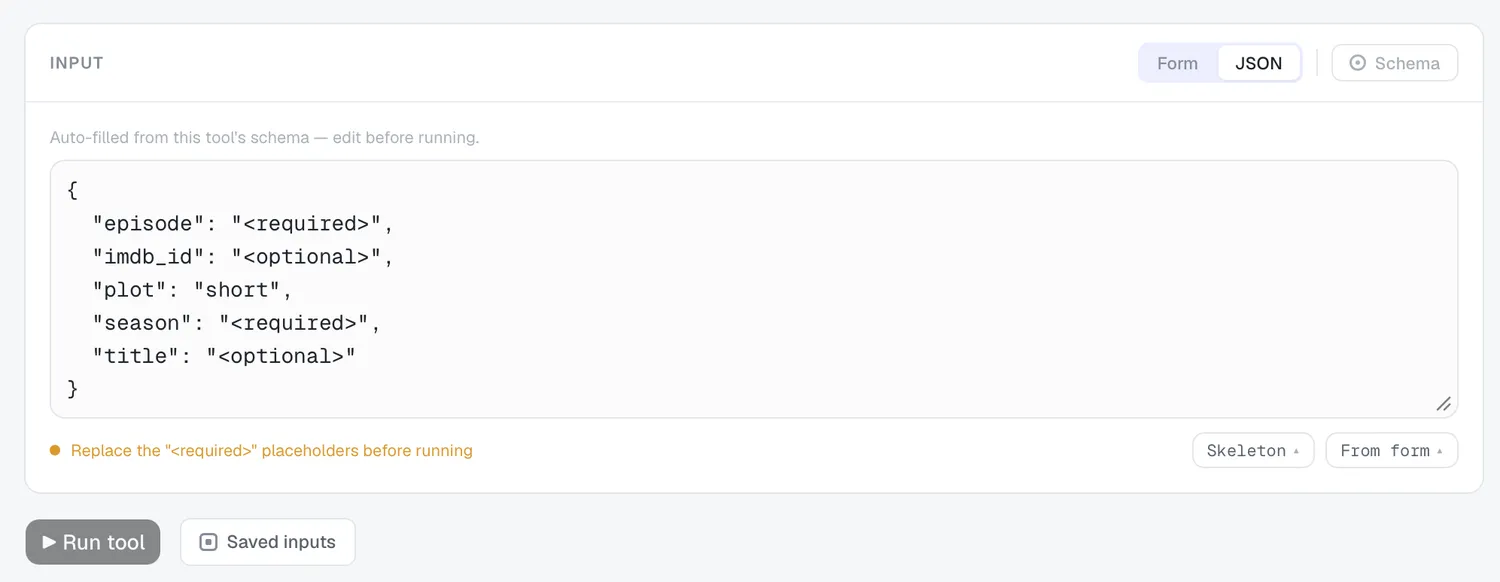
Section titled “JSON mode & skeletons”Switch to JSON and, on an untouched form, MCP Peek auto-fills a full schema skeleton — “Auto-filled from this tool’s schema — edit before running.”
- Required fields appear as
"<required>"— you must replace these (Run is gated until you do). - Optional fields appear as
"<optional>"— leave them and they’re simply omitted from the call.
Two menus give you control:
- Skeleton ▴ — All fields or Required only.
- From form ▴ — Replace or Merge the current form values into the JSON.
The status line tells you where you stand: “Invalid JSON — fix before running” · Replace the "<required>" placeholders before running · “Valid · unfilled optional fields are omitted” · “Valid · sent as the call arguments.”
Running
Section titled “Running”Press ▶ Run tool. While it runs you’ll see “Running…” with a progress bar and a Cancel button.
Result views
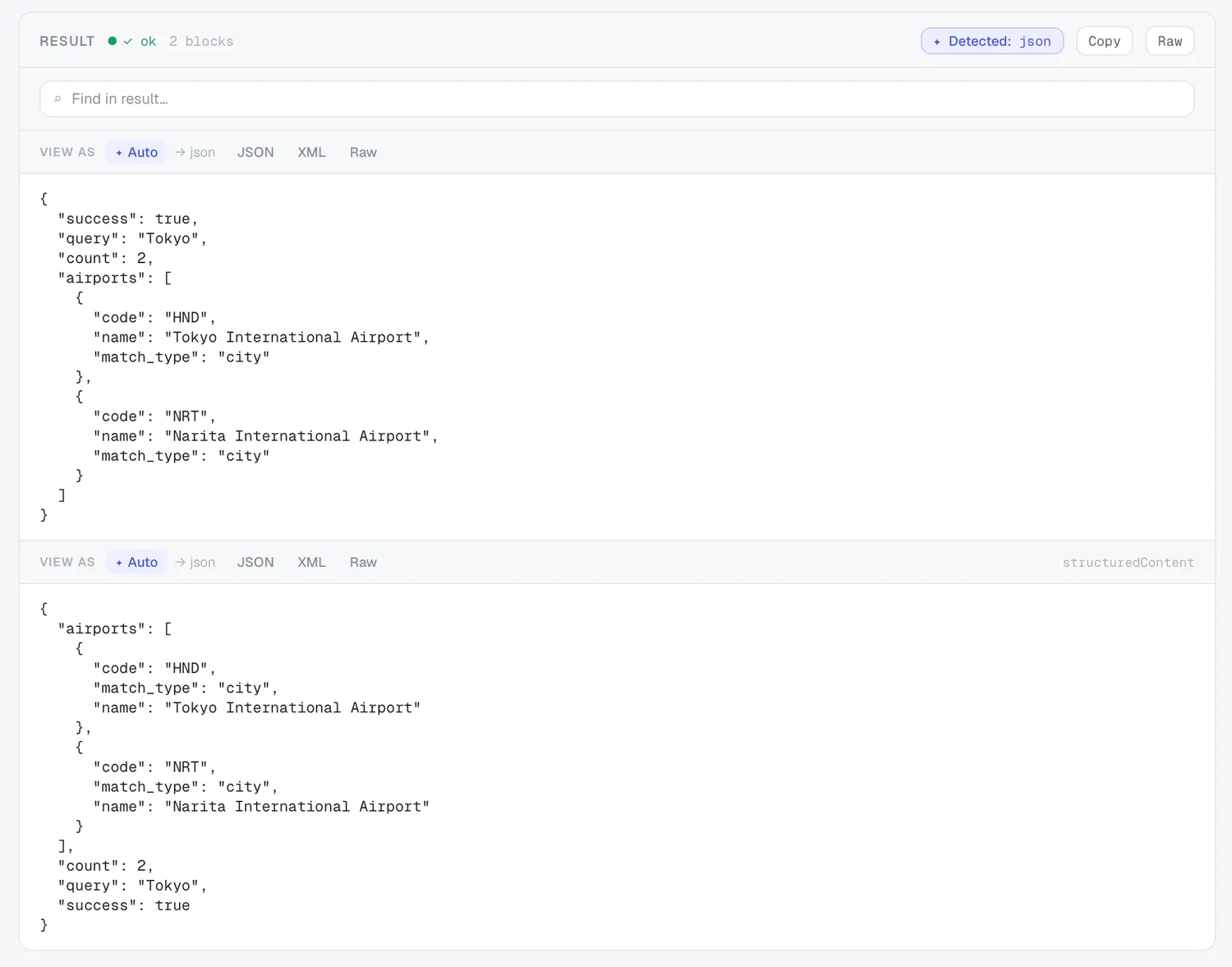
Section titled “Result views”The Result card shows a status (✓ ok / ✗ error), the block count, a Detected: kind, plus Copy, Raw, and “Find in result…”. The “View as” row lets you switch how the payload renders:
Auto · JSON · Table · CSV · TSV · Markdown · HTML · XML · Text · Raw
The available set depends on the content, and Auto picks the best fit for you. HTML renders in a sandboxed preview; images and audio render inline.
Saved inputs
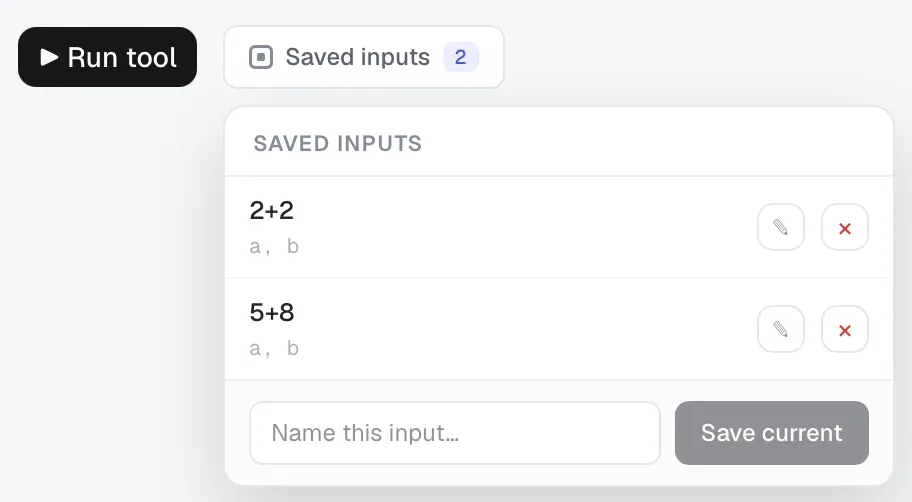
Section titled “Saved inputs”The Saved inputs button (with a count badge) opens a popover to Save current (name it — “Name this input…”), rename (✎), delete (×), and recall presets.
Prompts, Resources & Templates
Section titled “Prompts, Resources & Templates”- Prompts use a JSON-only “Arguments (JSON)” editor with a Get prompt action.
- Resources show a URI card with Read resource.
- Resource Templates currently show their URI template; expanding and running a template is coming in a future update.